I Made a Logo Using the Built-In Designer at Wealthy Affiliate (Step-by-Step)
When you start a niche site, one thing hits you fast.
You need a logo.
Not a fancy agency logo. Just something clean that makes your site look real. I used to bounce between free logo tools, Canva, and random generators. It worked… but it always felt patched together.
So this time, I used the Logo Designer inside Wealthy Affiliate and documented the whole process while creating a logo for my project, AI Site Starter.
No design skills. No external tools. Just their built-in AI.
Here’s exactly how it went.
Where the Logo Designer Lives Inside WA
To find it inside the Wealthy Affiliate Platform:
Menu → Tools → Logo Designer

It sits alongside Article Designer and Image Studio. This is part of WA’s AI tool suite, not a separate service you have to sign up for, and even the free starter accounts have access to it.
Step 1: Tell the AI About Your Brand
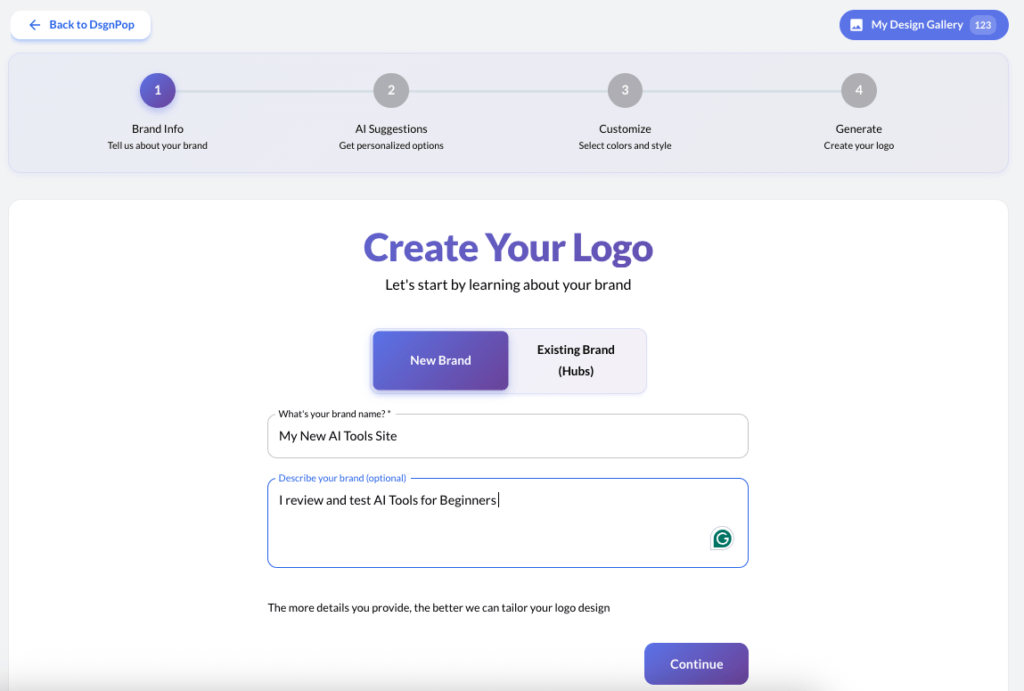
The first screen is simple.
It asks for:
- Your brand name
- A short description of your site
For my case study, I entered:
Brand name: My New AI Tools Site
Description: I review and test AI tools for beginners
That description matters more than you think. The AI uses it to shape the style and icon ideas.
Click Continue to move to AI suggestions.
Step 2: AI Suggests Logo Concepts
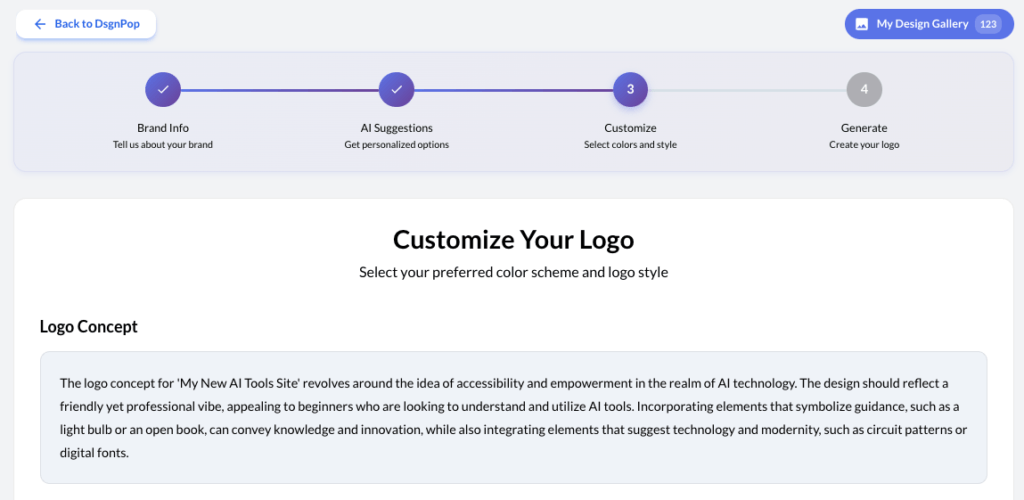
Behind the scenes, the system builds a concept based on your niche and audience.
For mine, it leaned toward:
- Friendly, beginner-focused style
- Tech-inspired visuals
- Icons that suggest ideas, learning, or innovation
This is where it starts feeling less like a template tool and more like guided design.
Step 3: Choose Colors and Style

Next, you pick a color scheme and overall vibe.
You get preset palettes like:
- Tech innovation blues
- Bright and friendly tones
- Professional minimalist schemes
For a beginner AI tools site, I went with a blue-focused tech palette. Feels modern, clean, and trustworthy.
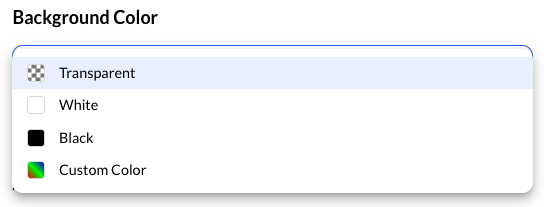
You can also choose background options:
- Transparent
- White
- Black
- Custom color
I picked transparent so I can use it anywhere on the site.
Step 4: Generate the Logo (Cost: 500 AI Credits)
When you hit generate, it uses 500 AI Credits.
The system indicates it typically takes 30–60 seconds. Mine finished right in that window.
Then… logo reveal.
The Result: A Clean Text + Icon Logo

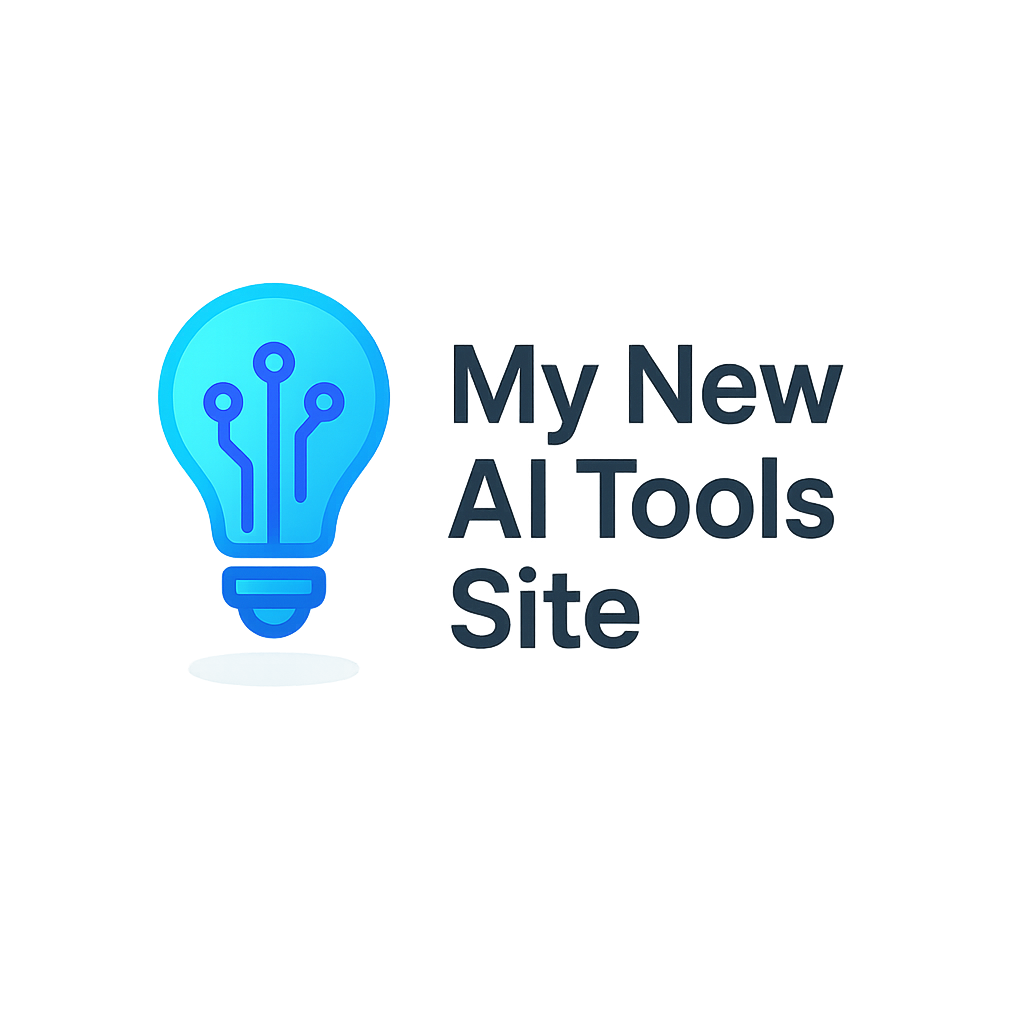
The Logo Designer created for my test site included:
- A tech-style lightbulb icon (ideas + innovation)
- Clean, modern text layout
- Matching blue tones
- Transparent background
- Size: 1024 × 1024
Exactly what a beginner-friendly AI tools site should look like.
No clutter. No weird clipart. Just simple and usable.
Downloading and Editing
From the results screen, you can:
- Download the logo as PNG or WEBP
- Regenerate variations
- Customize further with new instructions
Editing is prompt-based. You tell the AI what you want changed in normal language, like:
“Make the icon smaller and the text bolder.”
“Try a more playful version.”
“Use darker blue.s”
It uses your existing design as the base and evolves it.
Commercial Use Rights
This is important for niche site owners.
Logos created with this tool come with full commercial-use rights for your website and branding as a member. You’re not stuck wondering if you can legally use your own logo.
Who This Is Best For
This tool is ideal for:
- New niche site owners
- Affiliate marketers launching new projects
- Bloggers who want clean branding fast
- Anyone who doesn’t want to hire a designer yet
It’s not meant to replace a high-end branding agency. But for most affiliate or content sites, this gets you 90% of the way there in under five minutes.
Read my review of Wealthy Affiliate
Final Thoughts
I’ve paid for logos before.
I’ve used free tools that felt generic.
This felt different because it was built around my niche and audience, not just random icons and fonts thrown together.
If you’re already inside Wealthy Affiliate and haven’t tried the Logo Designer yet, it’s one of the easiest wins for making your site look more professional, fast.
And if you’re comparing platforms, this is one of those small built-in tools that quietly saves you time, money, and decision fatigue right at the start. If you wish to test it for yourself, you can get access to it by creating a starter account at Wealthy Affiliate using the button below. There is no obligation, and no credit card is required to experience this awesome tool.
The best part, the logo you create is yours to keep! See you soon.
Also, read about the Article Designer; you can try it while you are inside Wealthy Affiliate as well.
FAQ
Wealthy Affiliate Logo Designer Questions
Quick answers for beginners and affiliates comparing logo tools.
Where do I find the Logo Designer inside Wealthy Affiliate?
Open the left menu, go to Tools, then click Logo Designer. It sits with the other AI tools like Article Designer and Image Studio.
How many AI credits does a logo cost?
A single logo generation uses 500 AI Credits. If you regenerate variations, each new generation uses credits as well.
What file formats can I download?
You can download your logo as PNG and WEBP.
Can I edit the logo after it’s generated?
Yes. Edits work by using your generated logo as the base, then you type a plain-English prompt telling the AI what you want changed. It’s more like “revise this” than manual layer editing.
Do I get commercial use rights for my website and branding?
Yes. As a Wealthy Affiliate member, you have full commercial use rights for logos created with the tool on your websites and branding.
What should I type in the brand description for better results?
Keep it specific. Mention your niche, who it’s for, and the vibe you want. Example: “I review and test AI tools for beginners. Clean, friendly, modern.”
Is this tool only for niche bloggers?
No. It works for niche blogs, affiliate sites, small brands, YouTube channels, newsletters, and simple business sites. Anywhere you need a clean logo fast.